Account List⚓︎
1 Overview⚓︎
- Go to the Console page, click Account Management > Account List to open the account list page.
- JumpServer supports managed account management for assets.
2 Features⚓︎
2.1 View account information⚓︎
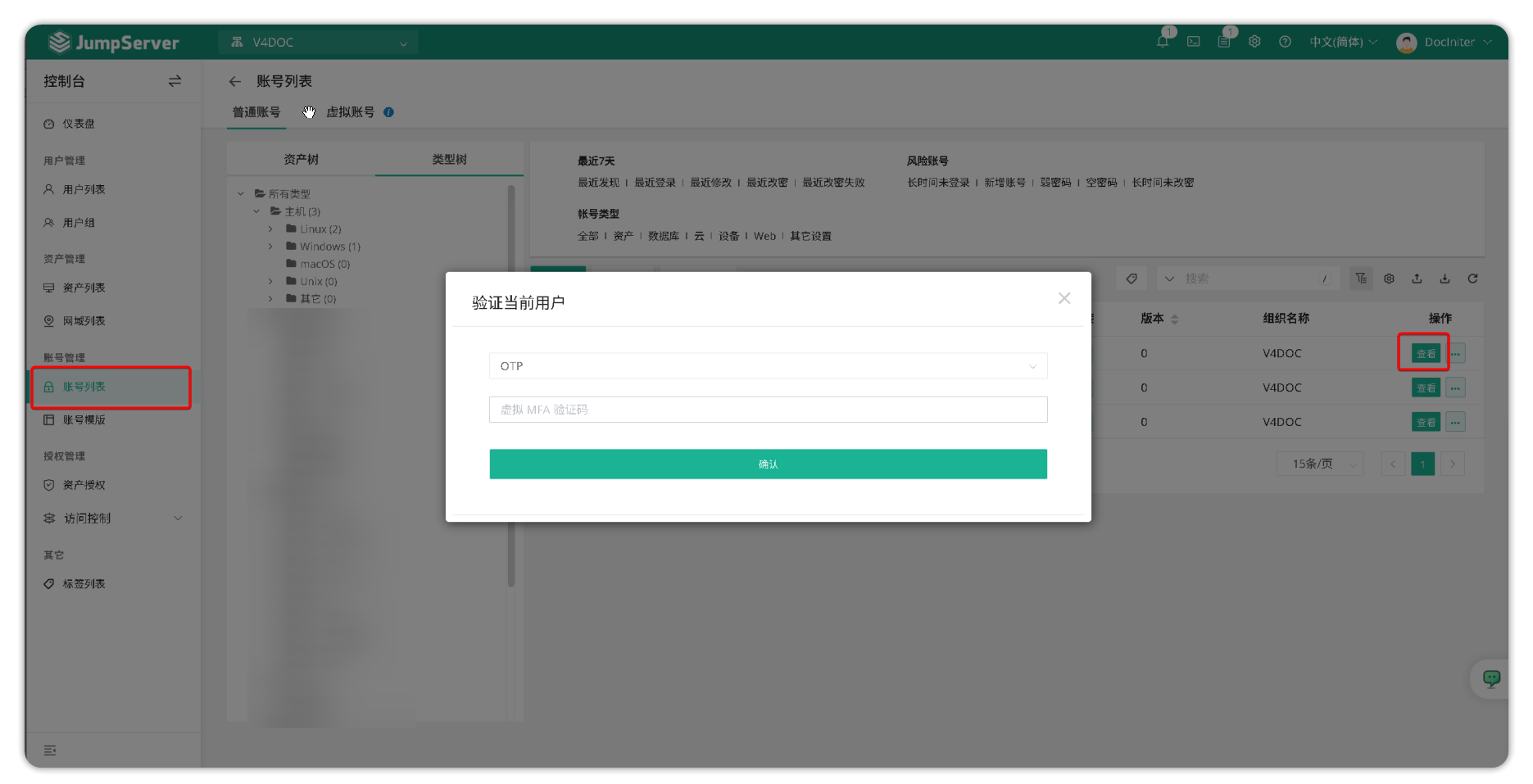
- Click the asset tree or type tree on the left side of the page to select a node or asset to view the account information associated with the asset (by default, admin MFA verification is required)
Hint
- MFA verification is required to view detailed account information such as account passwords.
- For security, JumpServer defaults to requiring MFA verification to view passwords. To disable MFA verification, add the configuration
SECURITY_VIEW_AUTH_NEED_MFA=Falseto the JumpServer configuration file (default:/opt/jumpserver/config/config.txt) and restart the JumpServer service.
2.2 Account information import/export⚓︎
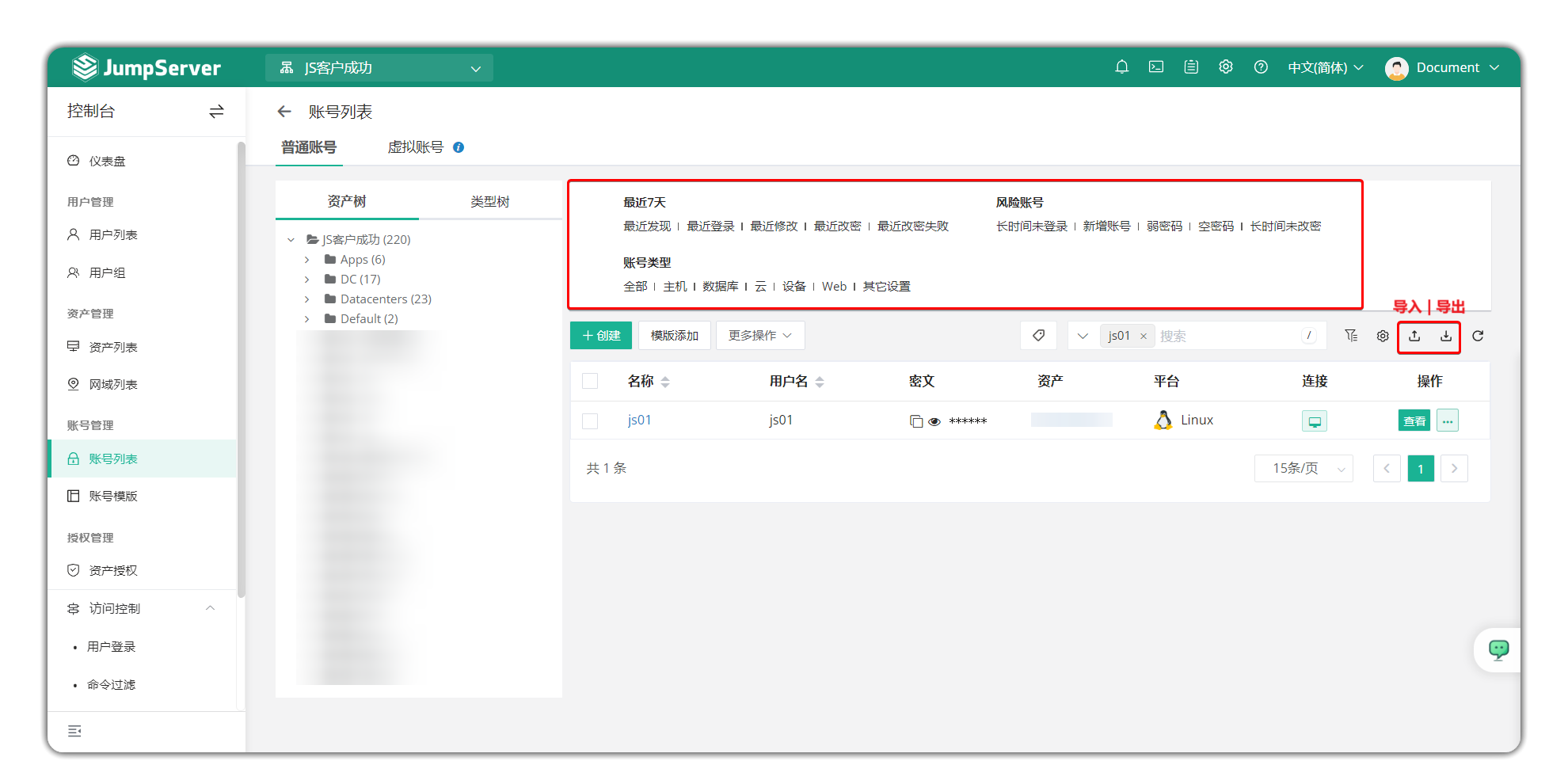
- You can bulk export account information. JumpServer supports exporting detailed information and passwords of all accounts associated with assets.Exported files are password-protected. You can modify this password in Preferences, accessible via the user avatar in the top-right corner. Account filtering can quickly filter the account list based on account type and risk accounts.
2.3 Add account⚓︎
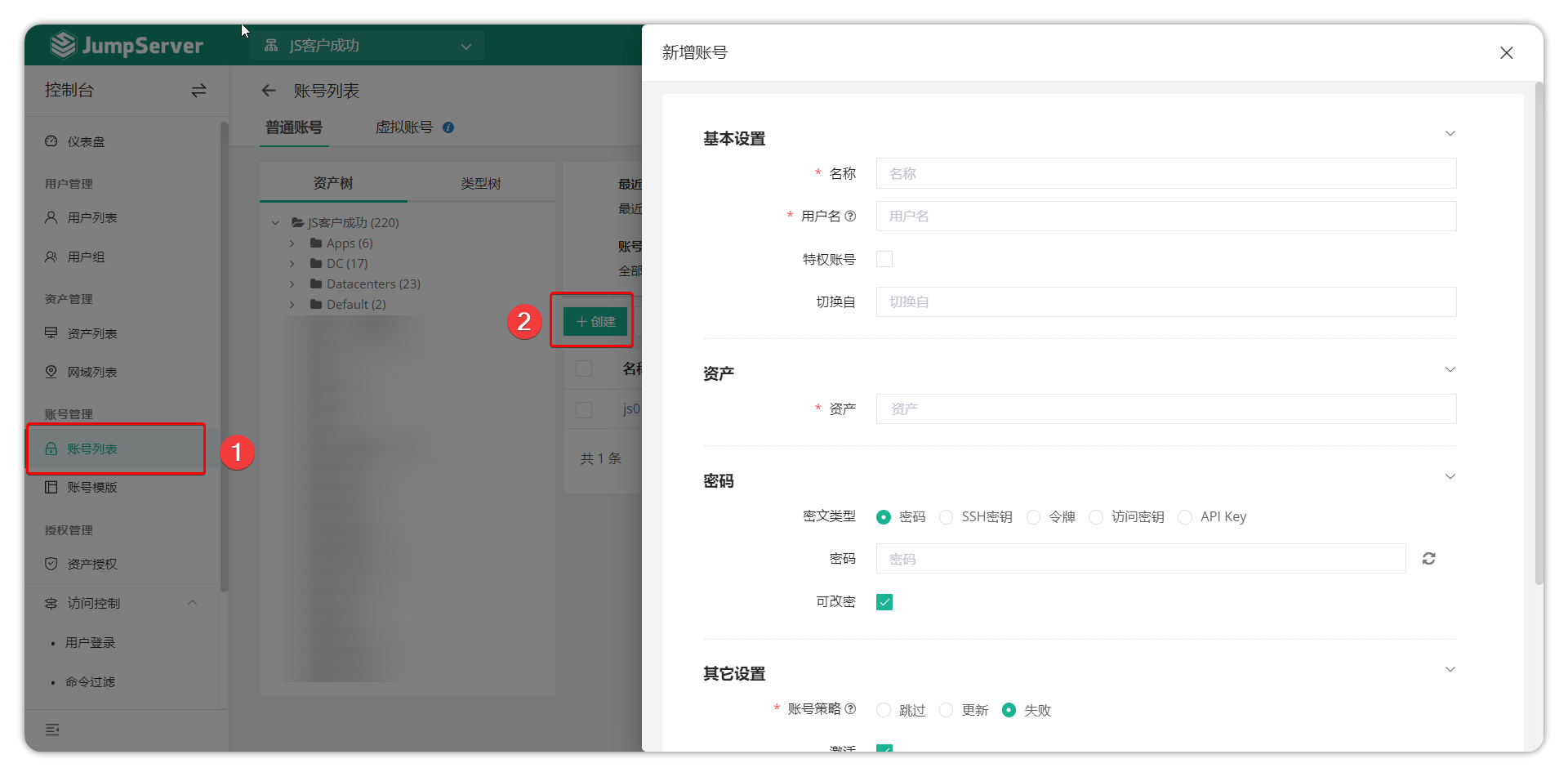
- JumpServer supports bulk associating one account with multiple assets (account adding feature). Click the Add button on the account list page, select the assets to associate with the account, fill in the account details, and bulk associate the account with the assets.
| Parameter | Description |
|---|---|
| Name | User identification name, can be repeated. |
| Username | Login account for accessing JumpServer, cannot be repeated. |
| Privileged Account | Accounts to be executed first during batch processing; supports duplicate settings. |
| Su Switch | This account switched to another account |
| Asset | Select created assets from the list; multiple selections are allowed. |
| Password | Authenticate with a password encrypted by the algorithm, suitable for logging in to assets via protocols such as SSH and RDP. |
| SSH Key | Implement passwordless login by configuring the private key file; the corresponding public key needs to be configured on the asset, supporting OpenSSH format. |
| Token | Typically used for the ciphertext type required when creating Kubernetes asset accounts |
| Password Changeable | When enabled, JumpServer can periodically change the password of this account on the asset through the account password change function. |
| Account Policy | When creating an account, if the key type is non-compliant, it restricts the key (Skip / Update / Fail). |
| Skip | When the account policy is executed, if the account does not meet the conditions or does not require processing, the system will skip this account without any operation. |
| Update | Indicates that the system will update the permissions or configuration of the account according to the policy, such as modifying the permission scope or validity period. |
| Fail | Indicates that an error occurred during the application of the account policy, such as insufficient permissions, unreachable target asset, or configuration conflict, resulting in the policy not taking effect. |
| Active | Restrict normal account login |
| Remarks | Optional field, used to fill in the account description information, which is convenient for administrators to identify and manage. |
2.4 Add account template⚓︎
- Click the Template Add button on the account list page, select the assets to associate the account template with, choose the account template to add, and bulk associate the account template with the assets.
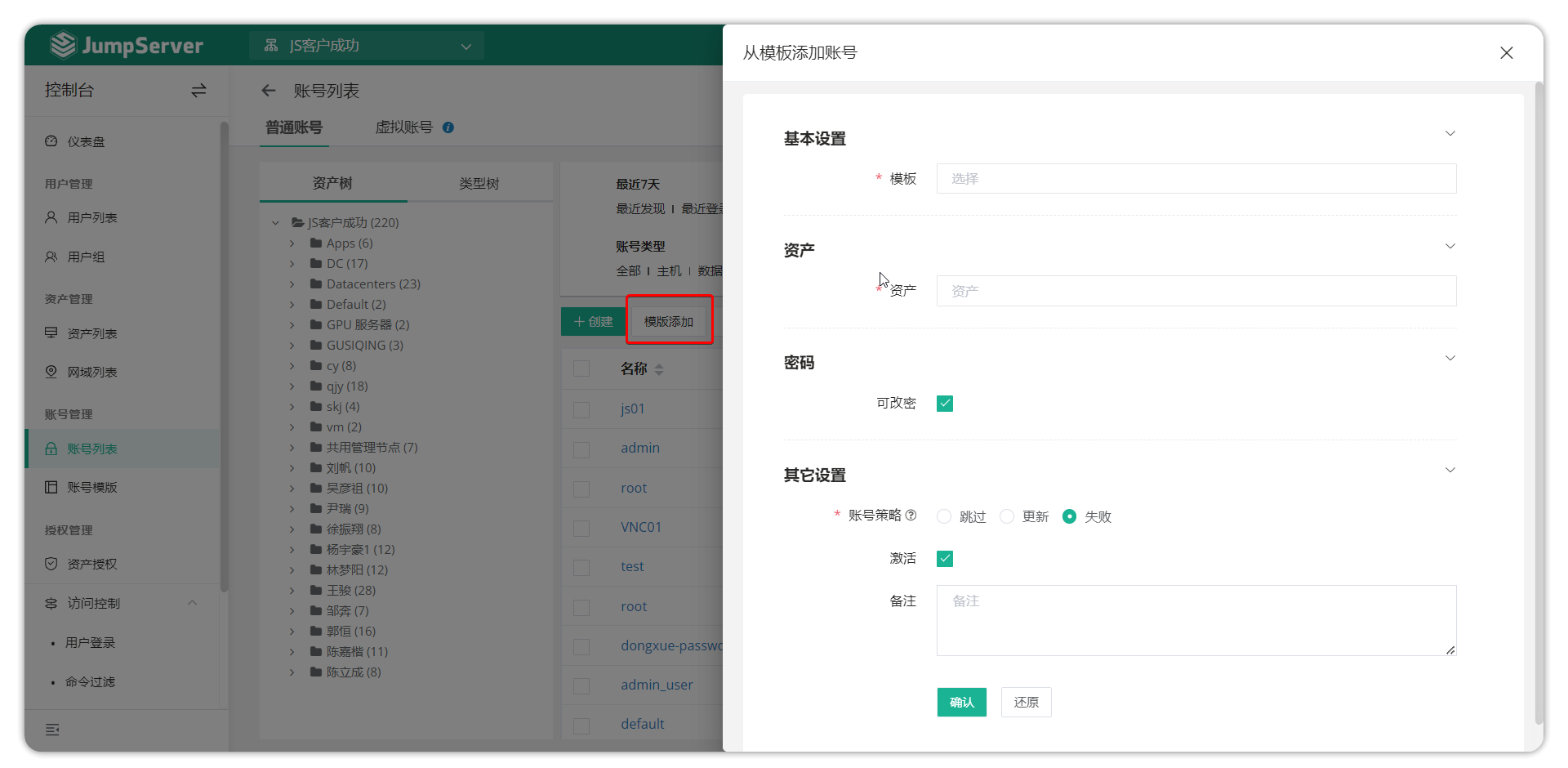
| Parameter | Description |
|---|---|
| Template | Select an existing account template. |
| Node | Set an existing node; you can select the authorized node corresponding to the asset. |
| Asset | Select a created asset from the list. |
| Password Changeable | When enabled, JumpServer can periodically change the password of this account on the asset through the account password change function. |
| Account Policy | When creating an account, if the key type is non-compliant, it restricts the only action (Skip / Update / Fail). |
| Active | Restrict normal account login |
| Remarks | Optional field, used by administrators to configure remark information for this account template. |
3 Virtual accounts⚓︎
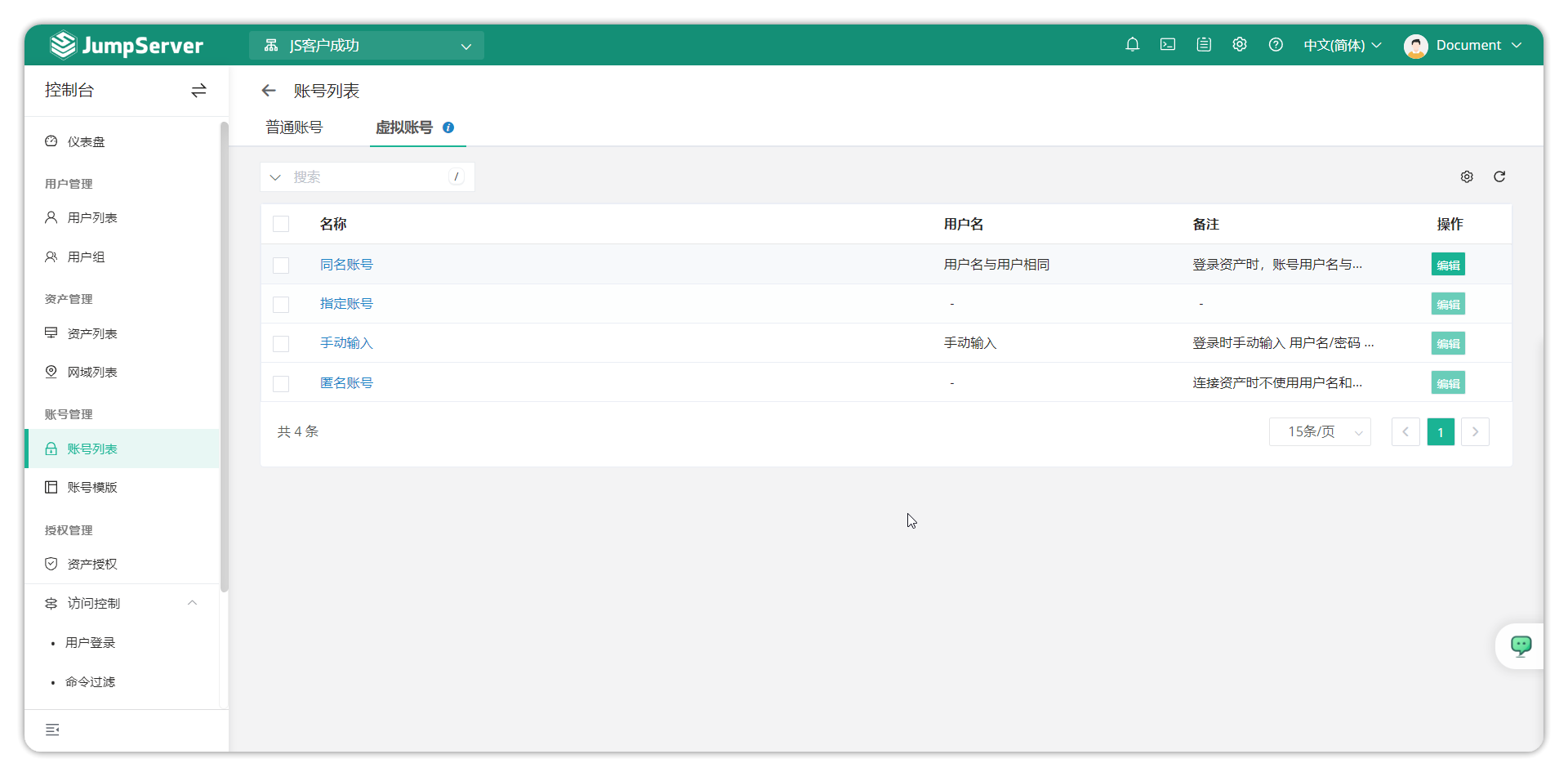
- In certain scenarios during authorization rule creation, virtual accounts are used to log in to assets. The virtual account page supports viewing details of virtual accounts. JumpServer supports allowing AD/LDAP users to log in to assets with JumpServer user passwords when authorization rules authorize accounts with the same name.